PNG to PDF Converter: The Ultimate Guide to Converting Images with Ease (2026)
If you have ever needed to share an image professionally, submit a form online, or consolidate multiple graphics into a single document, you already know why a reliable PNG to PDF converter is one of the most essential tools in your digital toolkit. Whether you are a student, designer, business professional, or casual user, understanding how to convert PNG files to PDF quickly and accurately can save you significant time and frustration.
In this comprehensive guide, we will cover everything you need to know — from what a PNG to PDF converter actually does, to the best tools available online and offline, their features, pros, cons, pricing, and expert tips for getting the best results.
Convert PNG to PDF Instantly
Free to use. No registration or sign-up required.
What Is a PNG to PDF Converter?
A PNG to PDF converter is a software tool, web application, or desktop program that transforms Portable Network Graphics (PNG) image files into Portable Document Format (PDF) documents. PNG is a raster image format widely used for screenshots, logos, icons, and digital artwork due to its lossless compression and transparency support. PDF, on the other hand, is a universal document format ideal for sharing, printing, and archiving.
Converting PNG to PDF is useful because:
- PDFs are universally compatible across devices and operating systems
- They preserve image quality without compression artifacts
- Multiple images can be merged into a single, organized document
- PDF files are easier to password-protect, sign, or annotate
- They are the preferred format for official submissions and professional use
Why You Need a PNG to PDF Converter
Before we dive into the tools, it is worth understanding the real-world scenarios where a PNG to PDF converter becomes indispensable.
Professional Documentation: Many businesses and institutions require documents to be submitted in PDF format. If you have scanned forms or screenshots saved as PNG files, converting them to PDF ensures compatibility and professionalism.
Portfolio and Design Work: Graphic designers and photographers often need to compile multiple PNG images — such as mockups, logos, and illustrations — into a single PDF portfolio for easy sharing with clients.
Academic Use: Students often take screenshots of research materials, diagrams, or notes saved as PNG files and need to consolidate them into a readable, submittable PDF document.
Data Archiving: Organizations that digitize records often use PNG format for individual scans. A converter allows them to bundle these into organized, multi-page PDF files for long-term storage.
E-Signatures and Forms: Scanned signatures or filled-out forms saved as PNG files often need to be converted to PDF before being digitally signed or submitted via email.
H2: Top PNG to PDF Converter Tools Reviewed
There is no shortage of tools claiming to offer seamless PNG-to-PDF conversion. Below, we review the most trusted and widely used options across categories — online tools, desktop software, and mobile apps.
1. Adobe Acrobat — Best Professional PNG to PDF Converter
Adobe Acrobat is the gold standard when it comes to PDF-related tools. It offers a robust PNG to PDF converter built directly into both its web and desktop applications.
Key Features:
- High-fidelity image-to-PDF conversion with no quality loss
- Ability to combine multiple PNG files into a single PDF in one step
- Advanced editing, annotation, and e-signature features
- OCR (Optical Character Recognition) capability for scanned images
- Integration with Adobe Creative Cloud, Microsoft Office, and Google Drive
Pricing: Adobe Acrobat Standard starts at approximately $12.99/month. A free limited-use version is available at adobe.com.
Pros:
- Industry-leading conversion quality
- Feature-rich beyond just conversion
- Trusted by enterprises worldwide
Cons:
- Expensive for occasional users
- The interface can feel overwhelming for beginners
Best For: Business professionals and creative teams who work with PDFs regularly.
2. Smallpdf — Best Online PNG to PDF Converter for Beginners
Smallpdf is one of the most popular cloud-based PNG to PDF converter platforms globally, with a clean, beginner-friendly interface and reliable performance.
Key Features:
- Drag-and-drop image upload with instant conversion
- Supports batch conversion of multiple PNG files simultaneously
- Files are automatically deleted after one hour for privacy
- Integration with Google Drive and Dropbox
- Browser-based — no installation required
Pricing: Free plan with limited daily conversions. Pro plan starts at $9/month. Visit smallpdf.com to get started.
Pros:
- Extremely easy to use
- Fast conversion speed
- No software installation needed
Cons:
- Free version limits you to two tasks per day
- Requires an internet connection
Best For: Casual users and students who need quick, occasional conversions.
3. ILovePDF — Best Free PNG to PDF Converter Online
ILovePDF is a free, feature-packed online suite that handles virtually every PDF task imaginable, including a dedicated PNG to PDF converter.
Key Features:
- Convert PNG, JPG, TIFF, and other image formats to PDF
- Batch upload support for up to 10 files on the free plan
- Page size customization (A4, US Letter, auto-fit)
- Margin adjustments and image orientation control
- Available as a web app, mobile app, and desktop app
Pricing: Free with ads. Premium plan at $6.61/month for unlimited use. Explore the tool at ilovepdf.com.
Pros:
- Generous free tier
- Multiple output customization options
- Available on multiple platforms
Cons:
- Ads on the free version can be distracting
- File size limits on the free plan
Best For: Users who need a free, flexible converter with customization options.
4. Img2Go — Best PNG to PDF Converter with Image Editing
Img2Go goes beyond simple conversion by combining a PNG to PDF converter with basic image editing functionality — all in the browser.
Key Features:
- Resize, rotate, and crop PNG images before conversion
- Choose output quality and PDF compression level
- Cloud storage integration
- Supports over 100 image formats as input
- SSL-encrypted file transfers for security
Pricing: Free with limits. Pro plans start at $9/month. Available at img2go.com.
Pros:
- Editing tools reduce the need for separate software
- Strong privacy measures
- Wide format support
Cons:
- Slower than dedicated converters for large files
- Interface may feel cluttered
Best For: Users who want to edit images before converting them to PDF.
5. PDF24 Tools — Best Offline PNG to PDF Converter
PDF24 offers both an online platform and a free desktop application for Windows, making it one of the best choices when you need a PNG to PDF converter that works without an internet connection.
Key Features:
- Completely free with no usage limits
- Desktop app for Windows with offline functionality
- Drag-and-drop interface
- Merge multiple PNG files into one PDF
- No file size restrictions on the desktop version
Pricing: Completely free. Available at tools.pdf24.org.
Pros:
- Totally free with no hidden costs
- Works offline
- No file size or usage restrictions
Cons:
- Desktop app only available for Windows
- Interface is functional but not particularly modern
Best For: Windows users who need an unlimited, offline converter at zero cost.
6. Preview (macOS) — Built-in PNG to PDF Converter for Mac Users
Mac users often overlook the fact that Apple’s built-in Preview application is a fully functional PNG to PDF converter that requires no third-party software.
Key Features:
- Convert any PNG to PDF with a few clicks using “Export as PDF”
- Combine multiple images into a multi-page PDF via drag-and-drop in the sidebar
- Annotate and markup PDFs after conversion
- Completely free and pre-installed on all Macs
How to Use: Open the PNG in Preview → File → Export as PDF → Save.
Pros:
- No download, no cost, no account needed
- Deeply integrated with macOS
- Surprisingly powerful for basic tasks
Cons:
- macOS only
- Limited advanced features compared to dedicated tools
Best For: Mac users who need fast, occasional conversions without installing anything.
7. Microsoft Print to PDF — Built-in PNG to PDF Converter for Windows
Windows 10 and 11 users have a native PNG to PDF converter built right into the operating system via the “Microsoft Print to PDF” virtual printer.
How to Use: Open the PNG in Photos or Paint → Print → Select “Microsoft Print to PDF” as the printer → Save.
Pros:
- Completely free and always available
- No software to download
- Works with any application that supports printing
Cons:
- Limited customization (no batch processing, no layout options)
- Quality depends on the source image
Best For: Windows users who need a quick, no-frills conversion without installing anything.
H2: How to Choose the Right PNG to PDF Converter
With so many options available, selecting the right PNG to PDF converter depends on your specific needs. Here is a practical framework:
Frequency of Use: If you convert files daily or in large batches, invest in a premium tool like Adobe Acrobat or Smallpdf Pro. For occasional use, free tools like ILovePDF or the built-in OS options are more than sufficient.
Privacy and Security: If you are dealing with sensitive documents — medical records, legal files, financial data — opt for a tool with strong encryption, automatic file deletion, or an offline solution like PDF24 desktop or macOS Preview.
File Volume and Size: Free online tools typically limit both the number of files and total file size per session. For high-volume or large-file conversions, a desktop application or a paid subscription is the more practical choice.
Output Quality: If image sharpness is critical — such as for print-ready materials or professional portfolios — choose a converter that offers lossless conversion or allows you to specify the output resolution and compression settings.
Cross-Platform Access: If you work across Windows, Mac, iOS, and Android, choose a cloud-based tool like Smallpdf or ILovePDF that works seamlessly in any browser on any device.
H2: Step-by-Step Guide to Using a PNG to PDF Converter Online
Using an online PNG to PDF converter is one of the most straightforward tasks in modern computing. Here is a detailed walkthrough using ILovePDF as an example:
Step 1 — Open the Tool: Navigate to Soarlabs/jpg_to_pdf in your browser.
Step 2 — Upload Your PNG File(s): Click the “Select images” button or drag and drop your PNG files directly into the upload area. You can add multiple files at once for a multi-page PDF.
Step 3 — Customize Settings (Optional): Before converting, you can adjust page size (A4, US Letter, or fit to image), orientation (portrait or landscape), and margins.
Step 4 — Convert: Click the “Convert to PDF” button. The tool will process your files in seconds.
Step 5 — Download: Once conversion is complete, click “Download PDF” to save the file to your device. You can also save it directly to Google Drive or Dropbox.
Step 6 — Verify the Output: Open the downloaded PDF to confirm that image quality, layout, and page order are correct.
H2: Common Issues with PNG to PDF Conversion and How to Fix Them
Even with the best PNG to PDF converter, users sometimes encounter problems. Here are the most common issues and practical solutions:
Issue 1 — Blurry or Low-Quality Output This usually happens when the source PNG has low resolution. Solution: Use the original, highest-resolution PNG file available. If the image was downscaled before conversion, source a better copy.
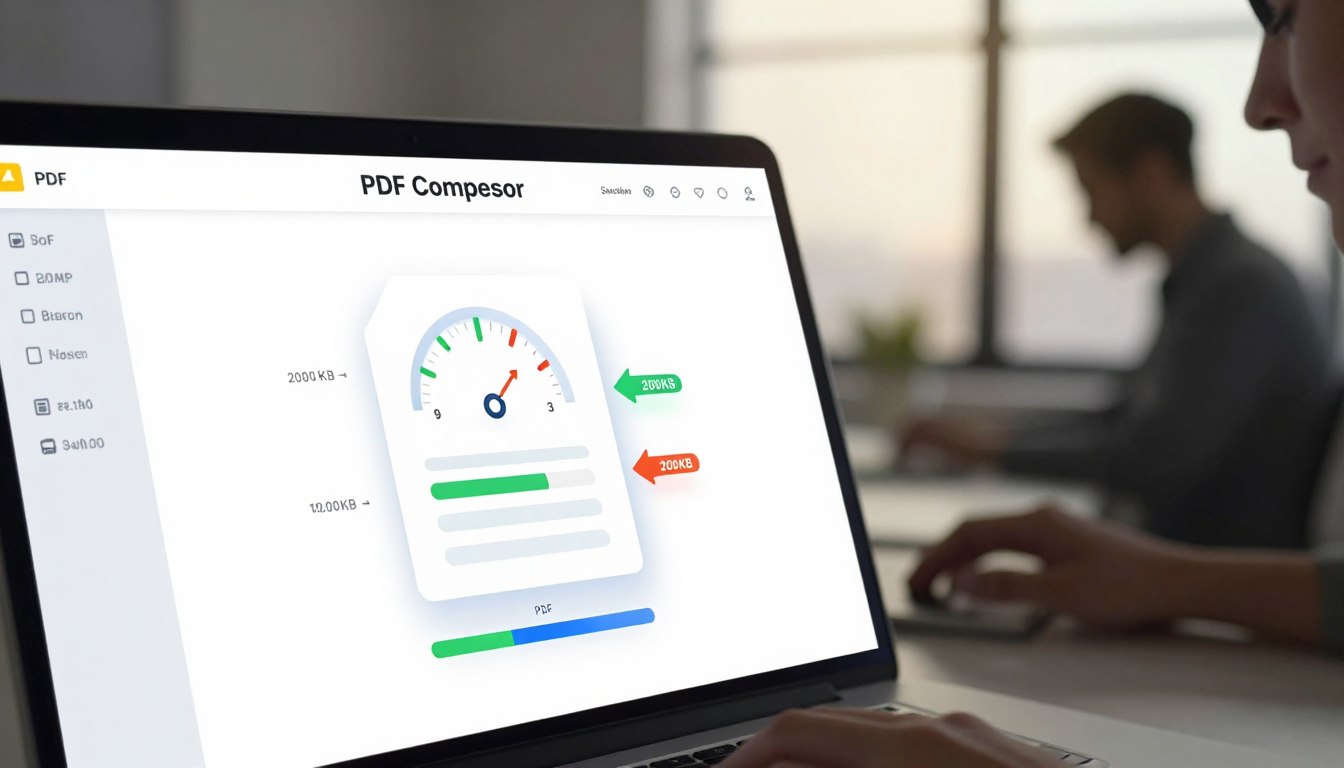
Issue 2 — Large PDF File Size PNG files can be large, especially for high-resolution graphics. Solution: Use a tool that allows you to set compression levels (such as Img2Go or Smallpdf) to reduce the output file size without significant quality loss.
Issue 3 — White Background Replacing Transparency PNG files support transparent backgrounds, but PDFs do not natively support transparency in the same way. Solution: Most converters fill transparent areas with white by default. To preserve a custom background, flatten your PNG with the desired background color before converting.
Issue 4 — Incorrect Page Order in Multi-Page PDFs When converting multiple PNG files, the order may not match expectations. Solution: Most tools allow you to drag and reorder files in the upload queue before conversion. Always verify the order before clicking “Convert.”
Issue 5 — Conversion Fails for Very Large Files Free online tools often have file size limits. Solution: Compress the PNG first using a tool like TinyPNG (tinypng.com), or switch to a desktop application with no size restrictions.
H2: PNG to PDF Converter — Mobile Apps Worth Knowing
Smartphone users are not left out. Several excellent PNG to PDF converter apps are available for iOS and Android:
Adobe Scan (iOS & Android): Primarily a scanning app, Adobe Scan also converts images to PDF with excellent quality. Free with in-app purchases.
PDF Converter by Cometdocs (iOS & Android): A lightweight, fast converter that handles PNG-to-PDF conversion on the go. Supports cloud storage sync.
Microsoft Office Lens (iOS & Android): Originally designed for scanning documents, it converts images to PDF with smart edge detection. Free and integrates with OneDrive.
iLovePDF Mobile (iOS & Android): The mobile version of the popular web tool, offering the same features in a smooth app interface.
H2: PNG to PDF Converter vs. Other Image-to-PDF Tools
You may have noticed that many converters accept JPG, TIFF, BMP, and other image formats in addition to PNG. So what makes a PNG-specific conversion unique?
PNG files use lossless compression, meaning no data is discarded when the file is saved. This makes them ideal for graphics with sharp edges, text overlays, and transparent backgrounds. When you use a PNG to PDF converter, you want a tool that preserves this lossless quality rather than re-compressing the image in a lossy format during the conversion process.
JPEG-to-PDF converters, by contrast, work with files that already have lossy compression applied. Converting a PNG as if it were a JPEG — using unnecessary re-compression — can visibly degrade quality. Always verify that your chosen converter handles PNG files natively and preserves their original quality.
Expert Tips for Getting the Most Out of a PNG to PDF Converter
- Use the highest-resolution source file available. The quality of your PDF output is only as good as the input PNG.
- Batch convert when possible. Most tools support multiple file uploads — use this to save time when working with large sets of images.
- Set the correct page size before conversion. Choosing A4 or US Letter from the start avoids unnecessary scaling or white space.
- Check transparency settings. If your PNG has a transparent background and you want it preserved as white in the PDF, confirm the converter handles this as expected.
- Use cloud integrations. Tools with Google Drive or Dropbox integration can save converted files directly to your cloud storage, simplifying your workflow.
- Verify output before sending. Always open the converted PDF on the intended device (or simulate print preview) to ensure formatting is intact.
Final Verdict: Which PNG to PDF Converter Is Best?
After reviewing all the major tools, here is a quick summary:
| Tool | Best For | Price |
|---|---|---|
| Adobe Acrobat | Enterprise and professional use | From $12.99/month |
| Smallpdf | Ease of use and speed | Free / $9/month |
| ILovePDF | Free use with customization | Free / $6.61/month |
| Img2Go | Editing before conversion | Free / $9/month |
| PDF24 Desktop | Offline, unlimited use | Free |
| macOS Preview | Mac users, no install | Free |
| MS Print to PDF | Windows users, no install | Free |
There is no single “best” PNG to PDF converter for everyone. Your choice should depend on your operating system, how often you convert files, your budget, and how important privacy and output quality are to you.
For most casual users, ILovePDF or Smallpdf will handle 90% of needs with no cost. Power users and professionals will find Adobe Acrobat worth every dollar. And if you are on a Mac or Windows PC and only need basic functionality, you already have a free converter built right into your system.
Conclusion
A reliable PNG to PDF converter is a tool you will turn to again and again — for work submissions, portfolio creation, document archiving, and more. With so many excellent free and paid options available in 2024, there is no reason to struggle with incompatible file formats or resort to manual workarounds.
Whether you choose a browser-based solution like ILovePDF, a premium desktop tool like Adobe Acrobat, or a built-in system feature like macOS Preview, the key is to pick a tool that matches your workflow, respects your privacy, and delivers consistent quality. Start with a free option, test it against your most common use cases, and upgrade only if you find yourself hitting limitations.
Bookmark this guide and return to it whenever you need to evaluate a new PNG to PDF converter — the landscape evolves quickly, and staying informed ensures you always have the best tool for the job.
This article contains external links to referenced tools for informational purposes. Always verify current pricing and features on the official website before subscribing to any paid service.