PDF to Image Converter Online
Convert PDF pages into high-resolution JPG images with clear text rendering.
📂 Drag & Drop PDF here or
PDF to Image Converter Online: The Complete Guide to Converting PDF Pages to High-Quality JPG Images
Whether you are a student, a working professional, a blogger, or a business owner, there is a strong chance you have encountered a situation where you needed a PDF to Image Converter Online. PDFs are excellent for preserving document formatting, but they are not always the most flexible format when it comes to sharing individual pages, embedding visuals in presentations, or uploading content to websites. Converting your PDF pages to JPG or PNG images solves all of these problems instantly — and the good news is that you do not need expensive software to do it.
In this comprehensive guide, we will walk you through everything you need to know about using a PDF to Image Converter Online, how it works, why it matters, which tools lead the market in 2026, and how to get the best output quality possible. By the time you finish reading, you will be fully equipped to handle any PDF-to-image conversion task with confidence.
What Is a PDF to Image Converter Online?
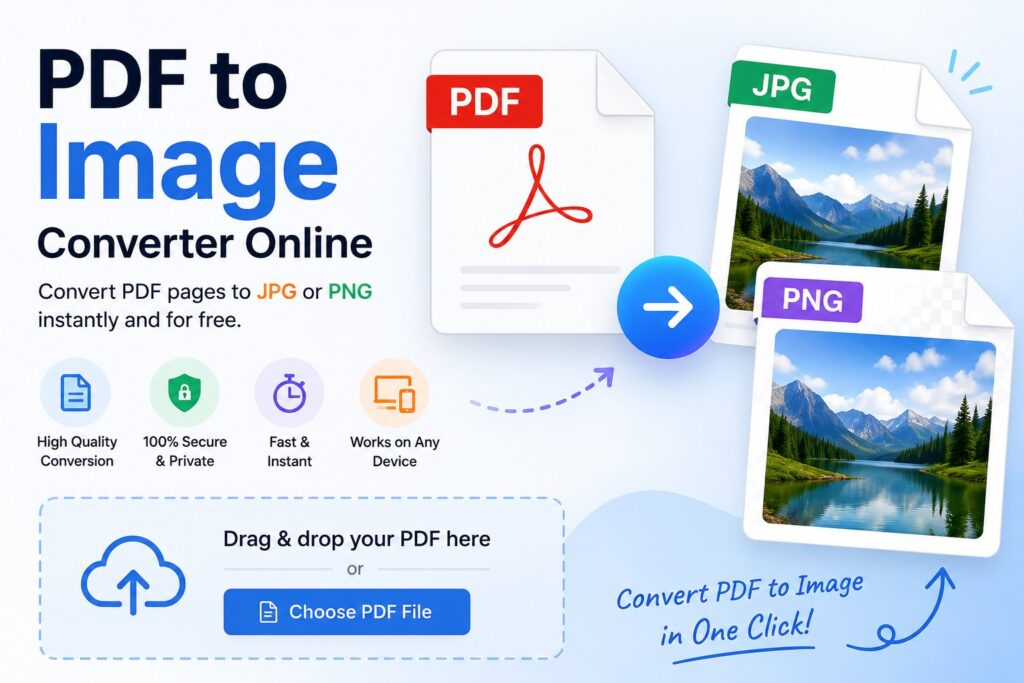
A PDF to Image Converter Online is a browser-based tool that takes a PDF file as input and transforms each page into a standalone image file — most commonly JPG (JPEG) or PNG format. Rather than installing heavy desktop software, you simply open the tool in your browser, upload your PDF, and download the resulting images within seconds.
These tools have become enormously popular because they work on any operating system — Windows, macOS, Linux, Android, or iOS — without any installation required. They also solve a very practical problem: PDFs are not directly embeddable as images in social media posts, website content, or slide decks. Converting them to JPG or PNG makes them universally compatible.
Modern online converters use rendering engines like PDF.js (a Mozilla open-source project) or server-side libraries to process your document with precision. The best tools render text using Character Map (cMap) support, which means even PDFs with complex fonts or special characters will display correctly in the output images — no missing letters, no garbled symbols.
🔥 Why You Need a PDF to Image Converter Online
There are dozens of real-world scenarios where a PDF to Image Converter Online becomes essential:
For content creators and bloggers: When you want to showcase a page from a report, a certificate, or a brochure on your website, converting it to JPG is the most reliable option. Images load faster, display everywhere, and are easier to manage within a CMS like WordPress.
For educators and students: Academic papers, lecture slides, and research documents often come as PDFs. Converting specific pages to images makes it easy to include them in presentations, annotate them in image editors, or share them directly on platforms that do not support PDF previews.
For businesses and marketing teams: Product catalogs, one-pagers, and proposal documents often need to be shared as image previews on social media or in email newsletters. A PDF to image converter makes this workflow seamless.
For developers and technical users: Sometimes a PDF needs to be processed programmatically, rendered as a thumbnail, or archived visually. Converting pages to images is a critical step in many document management pipelines.
For general users: Even everyday tasks like sharing a scanned ID, a receipt, or a filled-out form are much easier when the document is in image format rather than PDF.
How a PDF to Image Converter Online Works
Understanding the technical foundation helps you make better use of these tools and troubleshoot any quality issues you may encounter.
The Rendering Engine
Most modern browser-based converters rely on PDF.js, the open-source PDF rendering library developed by Mozilla. PDF.js parses the internal structure of a PDF file — its text streams, vector graphics, embedded fonts, and images — and redraws each page onto an HTML5 Canvas element at the resolution you specify.
Scale Factor and Resolution
The single most important factor in output quality is the scale factor applied during rendering. A scale of 1.0 maps one PDF point to one pixel on screen, which typically produces an image around 72–96 DPI — fine for screen viewing but blurry when printed or zoomed in. A scale of 2.0 doubles the dimensions, yielding approximately 150–192 DPI. A scale of 3.0, which the best converters use, produces 216–288 DPI images — sharp enough for print quality and professional use.
High-quality converters set this scale to 3.0 by default, along with the intent: 'print' rendering flag, which instructs PDF.js to optimize text antialiasing and vector sharpness for print output rather than screen display.
Character Map (cMap) Support
One of the most common issues with PDF-to-image conversion is invisible or garbled text. This happens when a PDF uses non-standard font encodings. The solution is cMap (Character Map) support — a set of lookup tables that map font character codes to actual Unicode characters. Without cMap, text in many PDFs simply disappears in the output.
Quality converters load cMap data from a CDN, ensuring that even PDFs with complex encodings — including non-Latin scripts — render perfectly.
JPEG Compression
Once a page is rendered to a canvas, it is exported as a JPEG using the toDataURL('image/jpeg', quality) method. A quality value of 0.95 (95%) is the ideal balance between file size and visual fidelity. At this level, you get sharp, color-accurate images that are significantly smaller than PNG files while remaining visually indistinguishable from the original.
Top PDF to Image Converter Online Tools in 2026
🛠️ Industry-Leading PDF Conversion Alternatives
Adobe Acrobat
High-quality dynamic output directly from the PDF pioneer. Requires an account for advanced features.
Smallpdf
GDPR-compliant browser-based platform running on robust TLS cloud data encryption processing framework.
PDF24 Tools
Generous cloud infrastructure with adjustable DPI parameters. Delivers files packed neatly into ZIP archives.
PDF to Image Converter Online: Key Features to Look For
Not all tools are created equal. When choosing a PDF to Image Converter Online, evaluate it across these critical dimensions:
Output Resolution: Look for tools that offer at least 150 DPI output, with 300 DPI or higher being ideal for professional use. If the tool does not mention DPI or scale settings, test it on a text-heavy PDF and zoom into the output image.
Character Map Support: If you regularly work with PDFs containing non-English text or specialized fonts, verify that the tool includes cMap support. Without it, text will render as blank or incorrect characters.
Privacy and Security: Understand where your files go. Client-side converters (those that process everything in your browser) offer the highest privacy. Cloud-based tools should provide encryption and automatic file deletion.
File Size Limits: Most free tools cap individual file size at 50–100MB. For large scanned documents or multi-hundred-page reports, look for tools with higher limits or batch processing capability.
Multi-Page Handling: A quality converter should process every page of your PDF and allow you to download all output images in a single ZIP archive or as individual files.
Speed: Conversion time varies significantly. Browser-based tools may take longer for large files since processing happens on your device, while cloud tools offload computation to servers.
Format Options: The best tools let you choose between JPG, PNG, and TIFF output. JPG is ideal for photographs and color-rich pages; PNG is better for text-heavy documents where lossless quality matters.
PDF to Image Converter Online: Step-by-Step Usage Guide
Here is a general workflow that applies to almost any PDF to Image Converter Online tool:
Step 1 — Prepare Your PDF File Make sure your PDF is finalized and not password-protected. If it is password-protected, you will need to unlock it first using a tool like Adobe Acrobat or an online PDF unlocker.
Step 2 — Open the Converter Navigate to your chosen tool in any modern browser. No downloads or installations are needed for browser-based converters.
Step 3 — Upload Your PDF Either drag and drop your file into the designated upload area or click “Select File” to browse your device. Most tools accept files up to 50MB on their free tier.
Step 4 — Configure Quality Settings If the tool offers DPI or quality settings, select the highest available for professional results. For web use, medium quality reduces file sizes while keeping images visually sharp.
Step 5 — Run the Conversion Click the Convert button. Processing typically takes a few seconds to a couple of minutes depending on file size, page count, and the tool’s infrastructure.
Step 6 — Download Your Images Once conversion is complete, download each page as an individual JPG/PNG file, or download all pages at once in a ZIP archive. Review the output to verify text sharpness and color accuracy before using the images in your project.
PDF to Image Converter Online: FAQs
Is it safe to use an online PDF converter? Reputable tools use TLS encryption for file transfers and automatically delete your documents after processing. For highly sensitive documents, use a client-side (browser-based) converter that never uploads your file to a server.
What is the best output format — JPG or PNG? JPG is ideal for pages with rich colors, photographs, or gradients. PNG is better for documents with clean text and line art, as it is lossless and preserves sharp edges without compression artifacts.
Can I convert a scanned PDF to image? Yes. A PDF to Image Converter Online converts whatever is rendered on the page — whether it is native text, vector graphics, or a scanned image embedded in the PDF. The output quality will match the resolution of the original scan.
How many pages can I convert at once? This depends on the tool. Many free tools have no page limit, while others cap batch conversions at 20–50 pages per session. For very large documents, cloud tools generally handle them more efficiently than browser-based converters.
Is it free to use these tools? Most PDF to Image Converter Online tools offer a free tier with full core functionality. Premium tiers typically add features like batch processing, higher resolution outputs, API access, or removal of file size limits.
Final Verdict: Why Every User Needs a PDF to Image Converter Online
The ability to convert PDF pages to high-quality images quickly and reliably is one of those digital skills that pays dividends across virtually every professional and personal context. A well-chosen PDF to Image Converter Online removes friction from your document workflows, makes your content more shareable, and ensures that your converted images look just as sharp and clear as the original PDF — whether you are embedding them in a blog post, printing them, or archiving them for long-term storage.
Whether you choose a cloud-based service like Adobe Acrobat, Smallpdf, or PDF24, or opt for a self-hosted browser-side solution built on PDF.js with full cMap support and 3× rendering scale, the key is to prioritize output quality, privacy, and ease of use. The right PDF to Image Converter Online should feel invisible — you upload your file, you get pristine images, and you move on with your work.
For further reading on PDF rendering technology, explore the official PDF.js documentation maintained by Mozilla. For PDF standards and specifications, the Adobe PDF Reference remains the authoritative resource.